









Dracoon FAQ
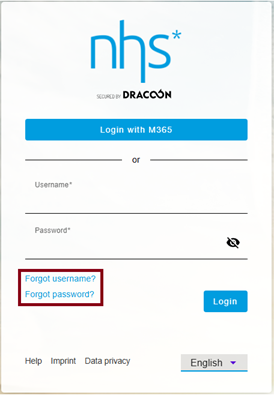
Issues logging in / Forgot password
nhs* does not have access to your password. Please us the option “Reset password” on the logon screen.
- Forgot Username: https://dracoon.nhs.group/oauth/username-recover
- Forgot Password: https://dracoon.nhs.group/oauth/request-password-reset
How to upload a document
The upload button is located on the top right. When clicking on it, a menu to upload files or full folder structures opens (Please note: Internet Explorer does not support folder upload). After choosing option “file” or “folder”, your local explorer opens and you can select the file(s) for upload.

Alternatively, you can upload files using drag & drop. The document will be placed in the folder you are currently in.
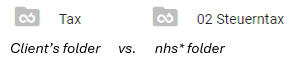
If the Upload button is disable, you are not allowed to upload anything to this folder. Please check that you are in a client’s folder.
How to download a document
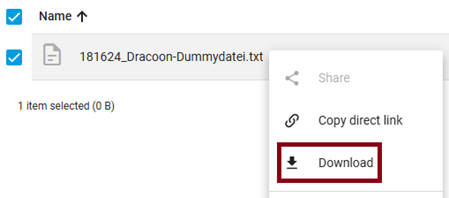
Right-click the file you want to download as a copy, and click Download in the context menu.
Note: If you find yourself in the details view of the file, click the Download button in the upper right corner.
The file is downloaded to your Downloads folder using the download function of your browser.

For further support, please reach out to your contact person at nhs*.